
Gang Sheet Builder (Software Guide)
The DTF Gang Sheet Builder lets you combine multiple designs on one print-ready sheet, edit your artwork, arrange quantities, create garment mock-ups, and reorder saved designs.
Open the DTF Gang Sheet Builder to begin creating your custom transfers.
What Is a Gang Sheet?
A gang sheet is a single print-ready sheet containing multiple designs arranged together for printing at the same time.
Instead of uploading and printing each design separately, you can combine—or “gang”—different designs, sizes, and quantities onto one sheet. This helps you use the available printing space efficiently.
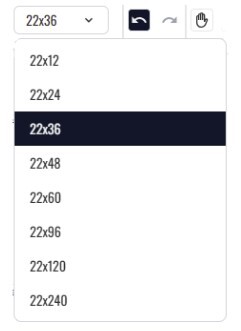
We offer a range of DTF gang sheet sizes to fit different projects, starting at 12" × 22" and going up to 240" × 22". Choose the sheet length that best fits the number and size of transfers you need.
DTF Artwork Requirements
For the best DTF printing results, artwork should be created at 300 DPI at its final print size, have a transparent background, and use solid, fully opaque colours. Please note: All measurements in the builder are in inches.
The DTF Gang Sheet Builder accepts PNG, PDF, SVG, JPG, PSD, AI, and EPS files.
Review our complete DTF artwork requirements and accepted file formats before submitting your gang sheet.
How Does the Builder Check Artwork Resolution?
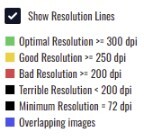
After you upload your artwork, the Builder evaluates its resolution using colour-coded quality indicators. It will also alert you if any designs on your gang sheet overlap.
Low-resolution artwork may appear blurry, fuzzy, or pixelated when printed. Increasing the dimensions of a small image will not restore missing detail.
DTF Image-Editing Tools
How Do I Remove an Image Background?
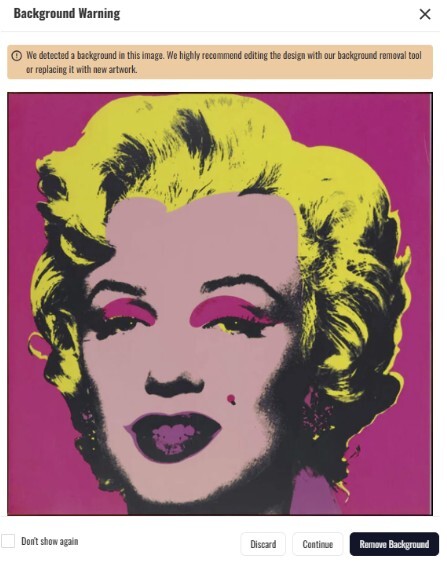
If your artwork has a background you do not want printed, the AI-powered Background Removal tool can help remove it automatically.
Depending on the image, the tool may appear as an option when you upload your artwork. Results vary based on image quality, contrast, fine details, and background complexity.
Always review the finished artwork carefully before adding it to your gang sheet.
Can I Upscale a Low-Resolution Image?
The AI Upscaling tool may improve the resolution and apparent sharpness of some low-resolution images.
After uploading your image, select it and choose Upscale. The software will create a higher-resolution version for you to review.
Upscaling cannot fully restore details missing from the original image. Always inspect the upscaled artwork carefully before printing.
What Does the Halftone Remover Do?
Our DTF printing process works best with solid, fully opaque colours. Semi-transparent pixels and some halftone effects may produce unwanted edges, inconsistent colours, or adhesion problems.
Low-resolution images, AI-generated artwork, and upscaled files may contain partially transparent pixels around edges and fine details. Use the Halftone Remover to help reduce these pixels by adjusting the available angle and density settings.
Always review the finished image carefully because results vary depending on the artwork.
How Do I Reduce Anti-Aliasing and White Halos?
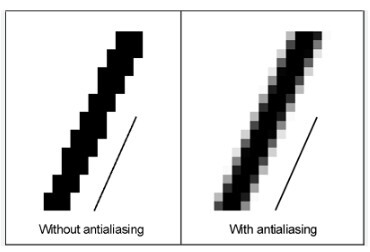
Graphics programs use anti-aliasing to smooth image edges so they appear less jagged. This process adds partially transparent pixels that may create a thin white or semi-transparent halo around some designs.
The Halftone Remover may help reduce this issue. Adjust the available settings as needed and review your artwork at a high zoom level before printing.
How Do I Crop an Image?
Use the Crop tool to adjust the shape and dimensions of your artwork. You can change its aspect ratio, resize it, or crop it into a circle.
How Do I Change or Remove a Colour?
Use the image editor to select a colour and replace it with another colour or remove it entirely.
Results vary depending on the file type, image quality, gradients, shading, and the number of similar colours in the artwork.
How Do I Change the Background Colour for Viewing?
If your design is difficult to see against a transparent background, open Settings and use the background-colour visual aid to create more contrast.
You can apply the visual aid to the entire gang sheet or use it while editing individual images.
Please note: Background colours selected with this visual aid are for viewing purposes only and will not be printed.
How Do I Add Text?
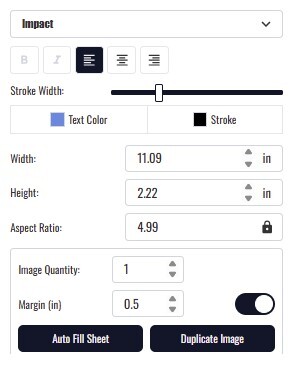
Use the Add Text tool to choose from the available fonts and customize the text colour, size, and aspect ratio.
You can also add a stroke around the text to create an outline and help it stand out from the rest of your design.
Arranging and Sizing Your Gang Sheet
How Do I Resize an Image?
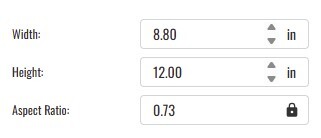
You can resize an image directly on the gang sheet by selecting and adjusting it. For more precise sizing, use the image editor to enter the exact dimensions required.
Always confirm the displayed width and height before completing your gang sheet. Your image will be printed at the size shown in the Builder.
How Do I Fill My Gang Sheet?
You can add and arrange designs using any of the following methods:
- Add copies individually: Select an image repeatedly to add one copy at a time.
- Auto Fill Sheet: Enter the number of copies required, adjust the margins, and select Auto Fill to arrange the images automatically.
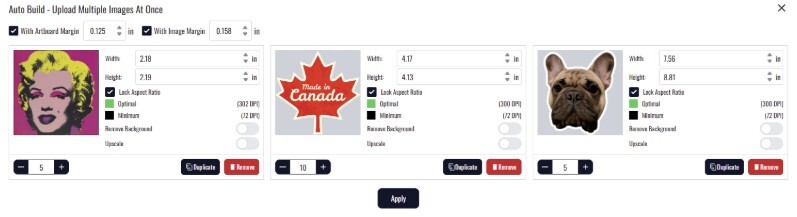
- Auto Build: Upload multiple designs, enter the quantity required for each design, and select Apply to create an optimized layout.
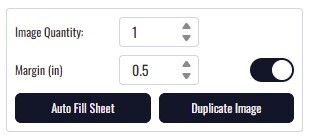
If the requested quantities do not fit on the selected gang sheet size, Auto Build will reduce the number of images placed on the sheet. Always review the final layout and quantities before ordering.
Can I Change My Gang Sheet Size?
Yes. If you started with the wrong gang sheet size, you can change the dimensions directly in the Builder without losing your existing layout or starting over.
Please note: Once the completed gang sheet has been added to your cart, its dimensions can no longer be changed.
How Do I Preview My Design on a Garment?
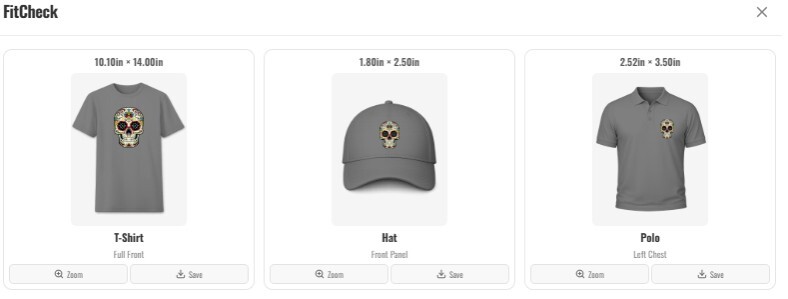
Use the FitCheck tool to create a visual mock-up of your design on a garment before ordering.
You can preview the design on different garments, change the garment colour, and download the mock-up image for reference.
Please note: Mock-ups are for visual purposes only and may not represent the exact scale, placement, or printed colour of the finished transfer.
How Do I Reorder a Previous Gang Sheet?
- Sign in to your account.
- Visit the DTF Gang Sheet Builder.
- Select Previous Designs to view your saved gang sheets.
- Select a previous gang sheet to add it to your cart.
- Select Edit if you want to review or modify the saved design.
- When finished, select Add to Cart again to save the updated version.
Please note: You can edit the artwork and layout of a previously ordered gang sheet, but its original gang sheet dimensions cannot be changed.